


How to Set Up E-commerce Tracking in GA4
-
Author
Saurabh Garg -
Publish
November 16, 2024 8:33 am -
Read Time
10 Min

 Lets talk











Fill in the Form below for a no-string attached free technical discussion.
With Universal Analytics being sunset in favor of Google Analytics 4 (GA4), E-commerce tracking is essential to understanding your online store’s performance, providing data on sales, user behavior, and key conversion metrics. Google Analytics 4 (GA4) simplifies tracking with advanced features like event-based tracking and enhanced measurement. This guide walks you through setting up e-commerce tracking in GA4 for your online store.
If you’re new to GA4 or need expert help, check out our detailed guide GA4 Consulting.
E-commerce tracking enables you to:
To further understand how GA4 can provide deeper insights, you can learn to Track User Behavior in GA4 and use advanced features like Cross-Domain Tracking in Google Analytics 4 for seamless tracking across platforms.
Before starting, ensure you have:


Enhanced Measurement automatically tracks page views, scrolls, and clicks, essential for e-commerce tracking.
GA4 uses predefined event names for e-commerce tracking. Ensure your website tracks the following events:
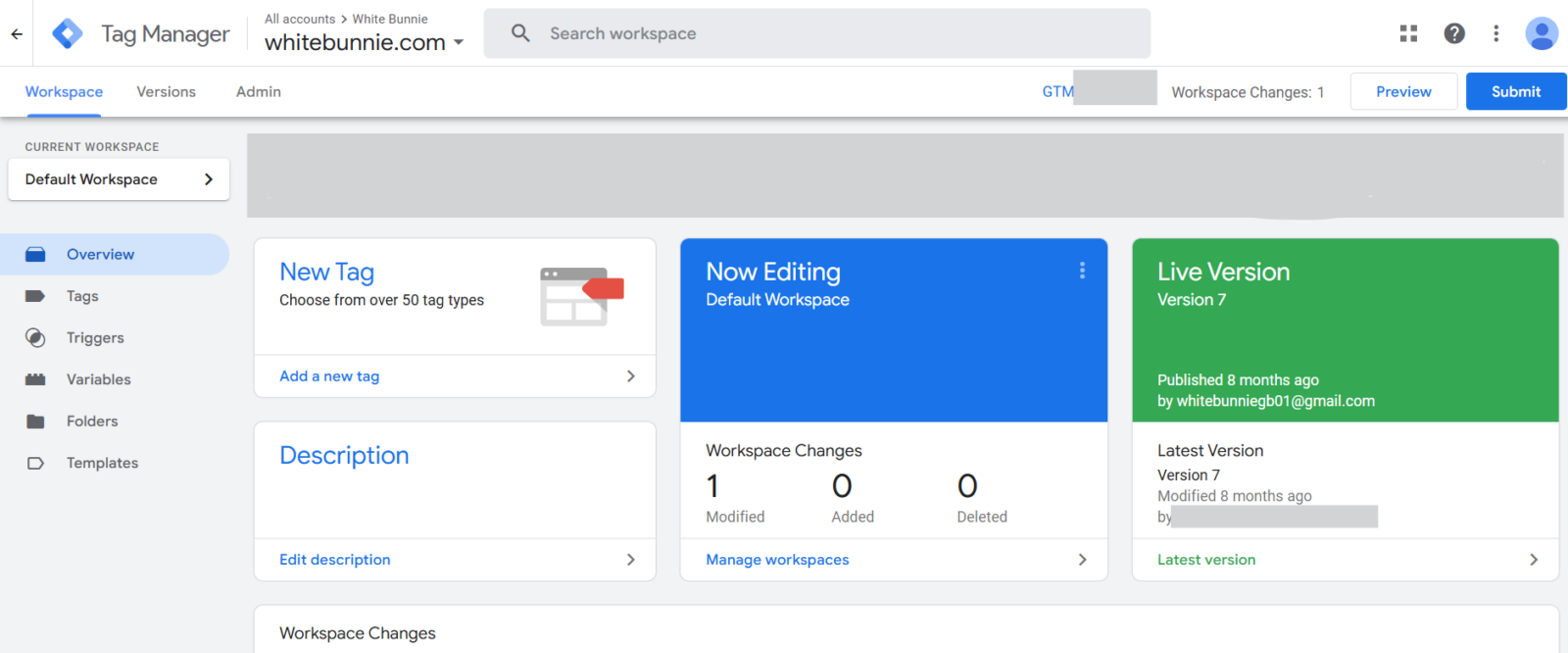
If you’re new to GTM, our blog What Is Google Tag Manager & How To Use It explains the basics and advanced implementation.
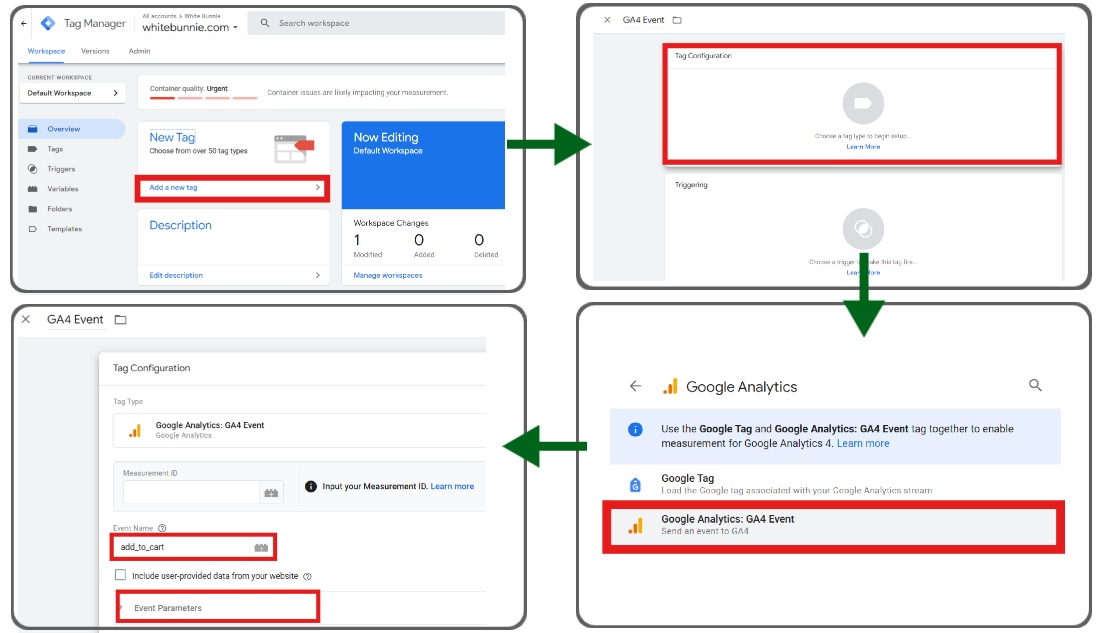
Repeat this process for all e-commerce events (e.g., view_item, begin_checkout, purchase).
For professional assistance, explore GTM Consulting services tailored to your business needs.
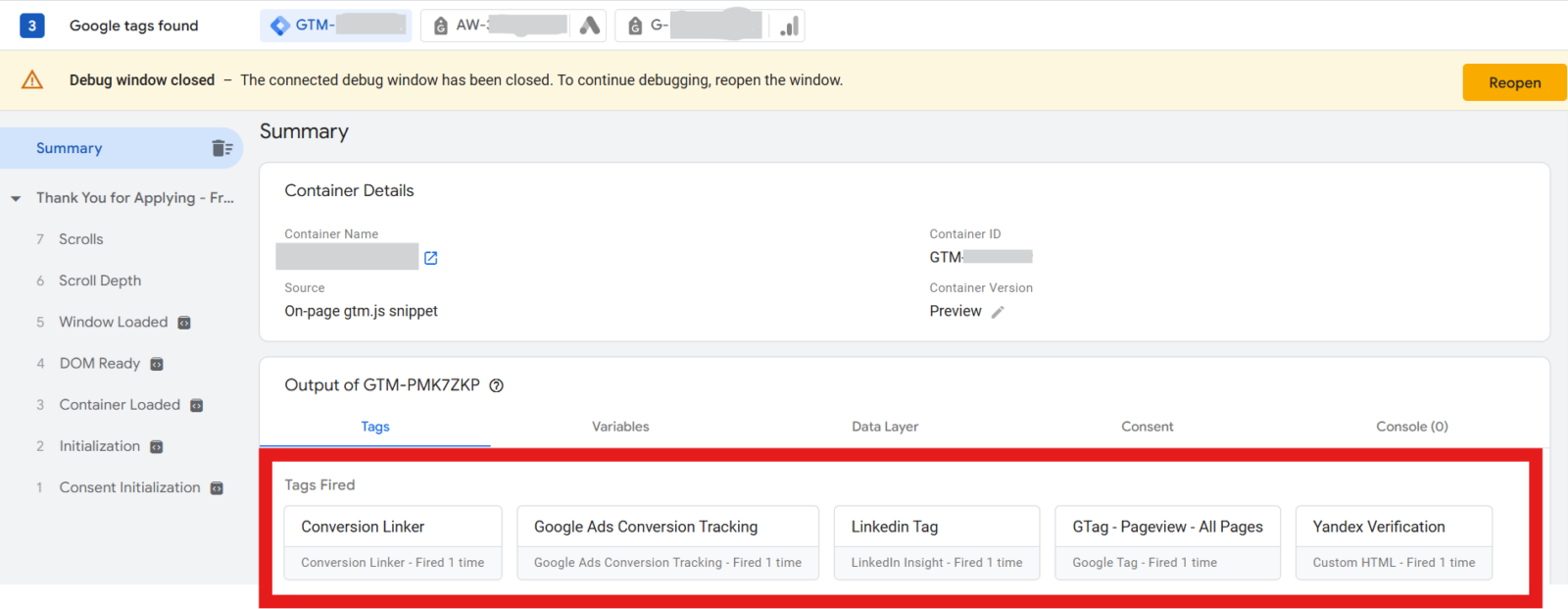

For filtering unwanted internal traffic during validation, check our guide on Exclude Internal Traffic In GA4.

After setup, you can analyze performance using:
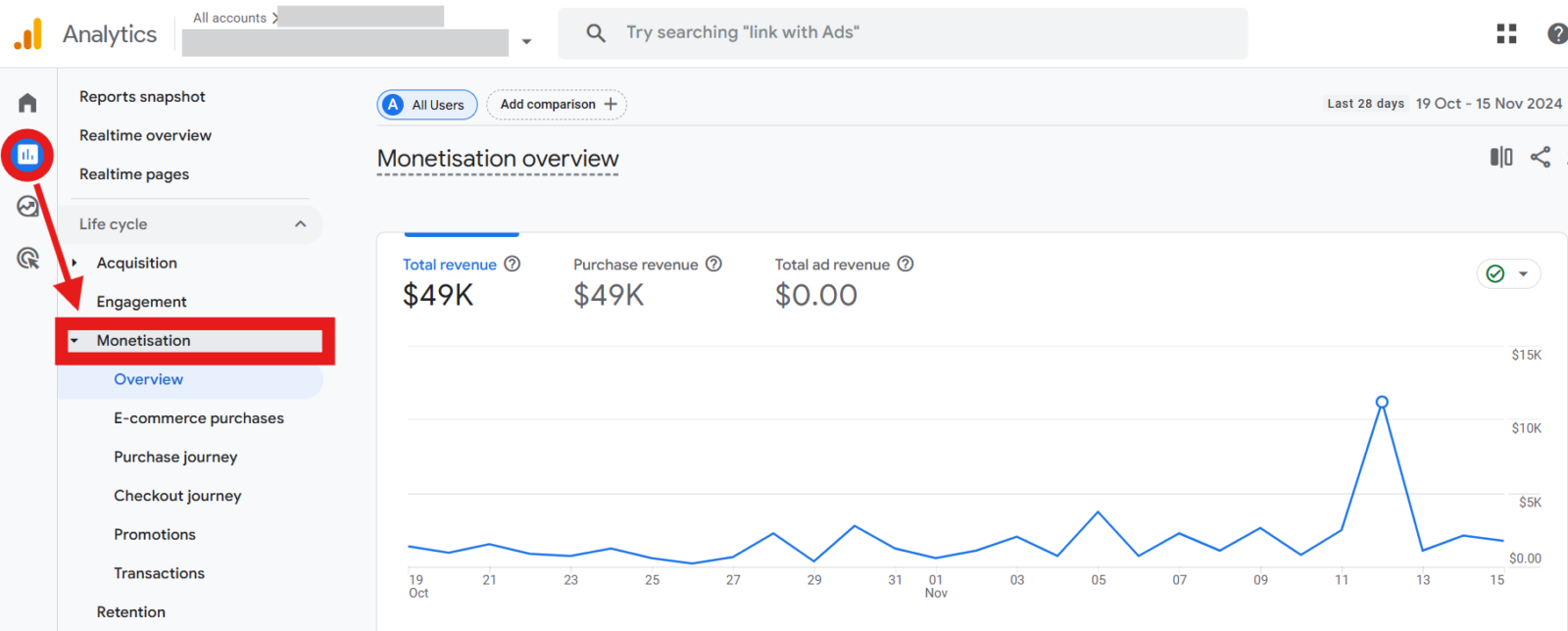
Setting up e-commerce tracking in GA4 is critical for optimizing your online store’s performance. By following this guide, you can track key metrics like sales, user behavior, and conversions with precision. Take your analytics game to the next level and make data-driven decisions to grow your business.

Saurabh Garg, the visionary Chief Technology Officer at Whitebunnie, is the driving force behind our cutting-edge innovations. With his profound expertise and relentless pursuit of excellence, he propels our company into the future, setting new standards in the digital realm.

Key takeaways GA4 in 2026 shifted from reporting to decision support, AI insights, attribution clarity and planning. Analytics Advisor answers […]
Read Post »
A healthy website maintains steady search traffic and rankings. When organic traffic or keyword positions suddenly fall, it’s time to […]
Read Post »
Tracking your marketing campaigns effectively is crucial to understanding what works and where to invest your efforts. Google Analytics 4 […]
Read Post »
Copyright © 2026 White Bunnie -All Rights Reserved