


How to Monitor 404 Errors in Google Search Console
-
Author
Saurabh Garg -
Publish
January 11, 2025 5:37 am -
Read Time
12 Min
 Lets talk











Fill in the Form below for a no-string attached free technical discussion.
404 error is definitely not something new for many of you. You must have faced the issue at least once while scrolling through the browser. It commonly appears as a “Page Not Found” error. However, most website owners do not know that this error can impact their platform quite negatively. How? Well, let’s take a very simple scenario.
Say you plan to buy some dresses online. You visit a fashion store, and when you click on every dress, you see this 404 Page Not Found Error message. Now, what will you do?
Well, we are sure you will leave the platform then and there. This is what the website issue will be from the user’s point of view. But the story does not end here. If you are the website owner, then you must know that this 404 error is impacting your user experience and SEO performance.
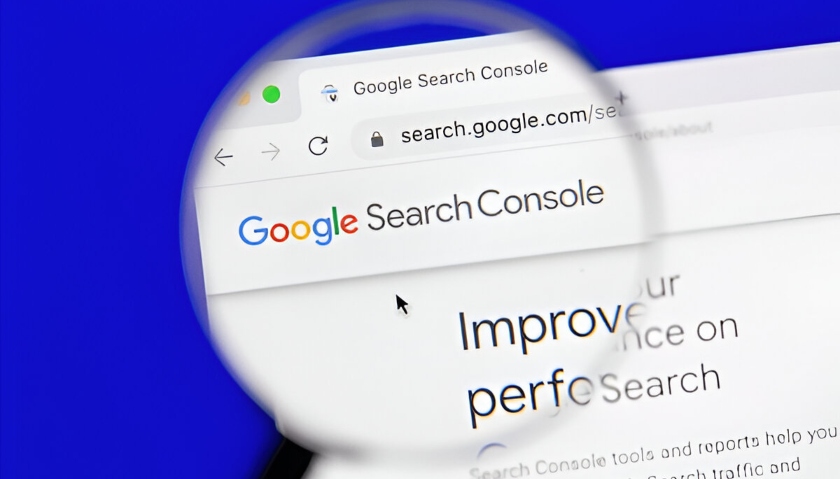
Hence, regularly monitoring and fixing these errors is crucial to maintaining a healthy website. This is where Google Search Console (GSC) can be really helpful. So, let us understand this in detail in the blog over here.
Google Search Console (GSC) is a free web service provided by Google. It allows the website owners and webmasters to maintain their site’s presence in Google Search results. This is done with the help of continuous optimization and analysis.
It was originally known as Google Webmaster Tools. It was rebranded in 2015 to reflect its expanded functionality better. When you use the GSC, you gain the following benefits:
Now that you know what GSC is, let us understand how to use it.
Using GSC is quite a simple process. If you follow the steps correctly, you will be able to access the desired outcome in no time. So, here are the steps that you must follow:


Note: The errors listed here are based on Googlebot’s crawl data. If a page is showing up as a 404, it means Googlebot couldn’t access it successfully.

Here’s how you can address the identified 404 errors:
404 Error pages affect a website’s crawl budget significantly if not managed properly. These errors can reappear if new broken links are introduced or pages are removed. To stay ahead:
Monitoring and fixing 404 errors is a continuous process that ensures a smooth user experience and helps maintain your website’s SEO performance. By leveraging Google Search Console, you can easily identify and resolve these errors, keeping your site in top shape for both users and search engines.
Start monitoring your site today and say goodbye to those pesky 404 errors! Connect with experts like us who can guide you on the minute details and make sure your website works flawlessly.

Saurabh Garg, the visionary Chief Technology Officer at Whitebunnie, is the driving force behind our cutting-edge innovations. With his profound expertise and relentless pursuit of excellence, he propels our company into the future, setting new standards in the digital realm.

In the dynamic world of digital marketing and SEO, the LLMS.txt file has emerged as a noteworthy innovation. As businesses […]
Read Post »
Website owners care about one thing when they publish new content how quickly it gets indexed. In 2026, this leads […]
Read Post »
AI search ranking factors 2026 prioritize “Citation Velocity” – how frequently and recently your data has been verified by the […]
Read Post »
Copyright © 2026 White Bunnie -All Rights Reserved