


How to Change Your Location in Google Search Settings
-
Author
Saurabh Garg -
Publish
November 19, 2024 7:11 am -
Read Time
5 Min

 Lets talk











Fill in the Form below for a no-string attached free technical discussion.
Google Search is tailored to deliver personalized results based on your location. While this is helpful for most searches, there are times when you might want to explore search results from a different country or region. Whether you’re conducting market research, looking for region-specific content, or simply curious about global search trends, changing your location in Google Search settings is straightforward.
This blog will guide you through the step-by-step process to modify your location in Google Search settings, complete with actionable steps and examples.
For businesses, especially those looking to enhance their global reach, accessing search results from other countries is an essential part of understanding market behavior.
To make the most of Google’s features, ensure you’re signed into your account.
Navigate to Google’s settings to adjust your region.
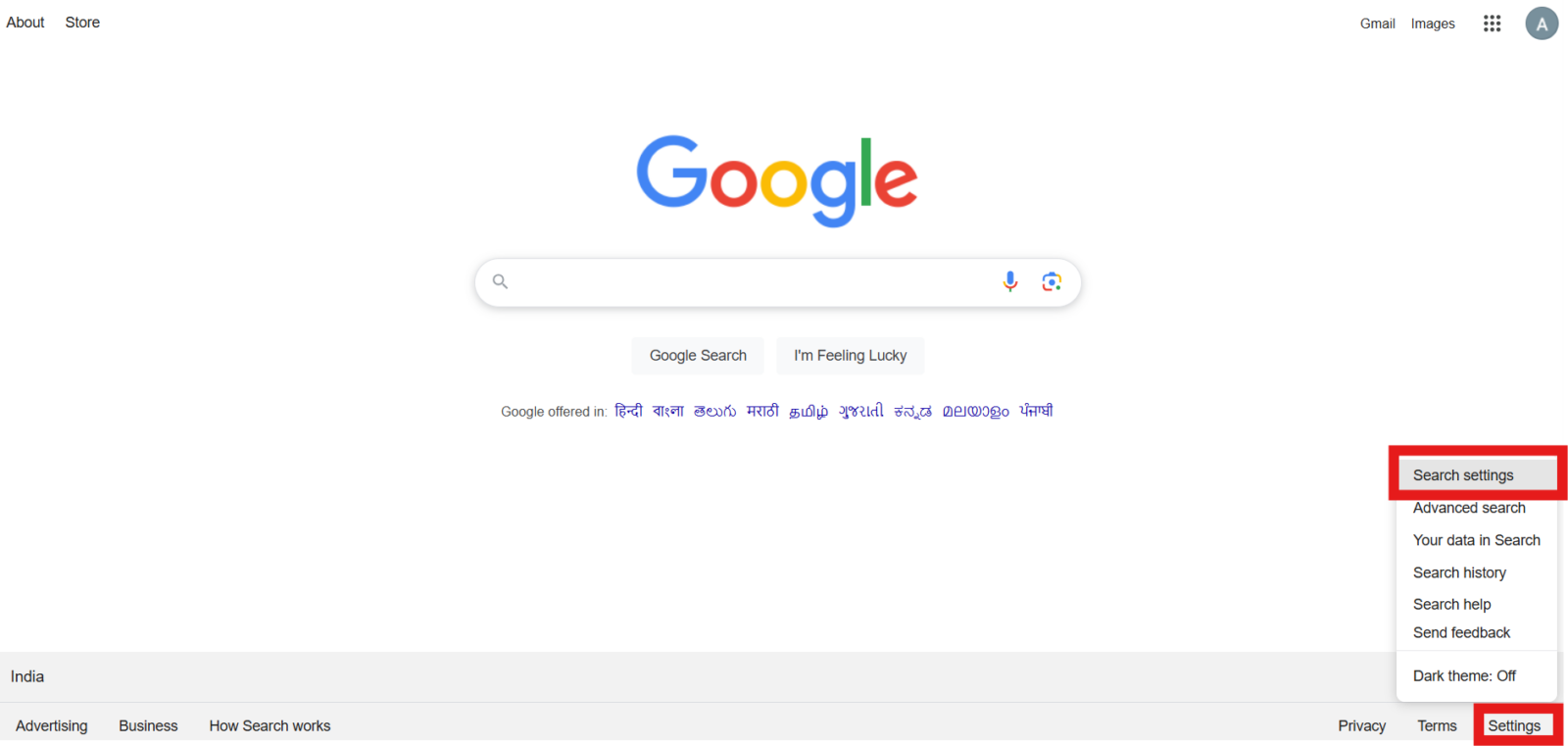
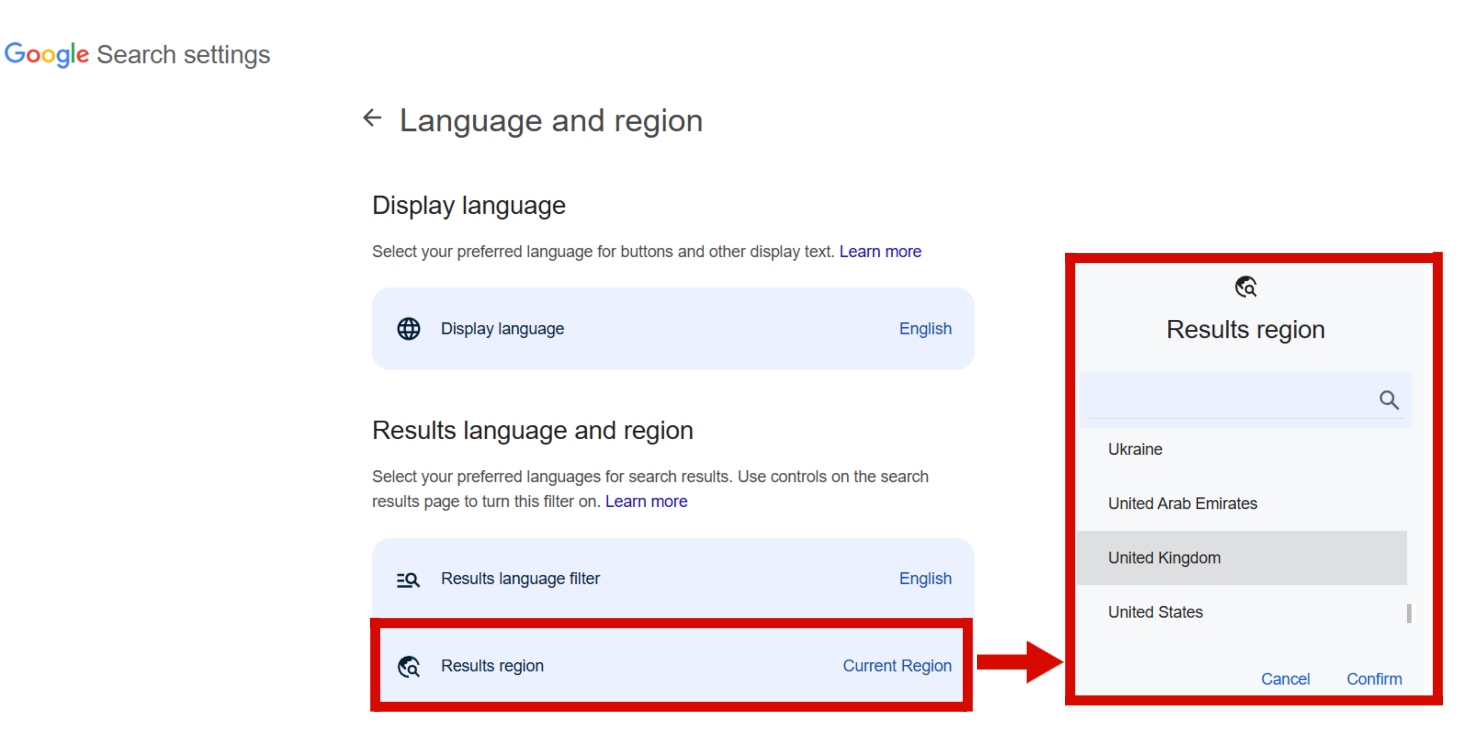
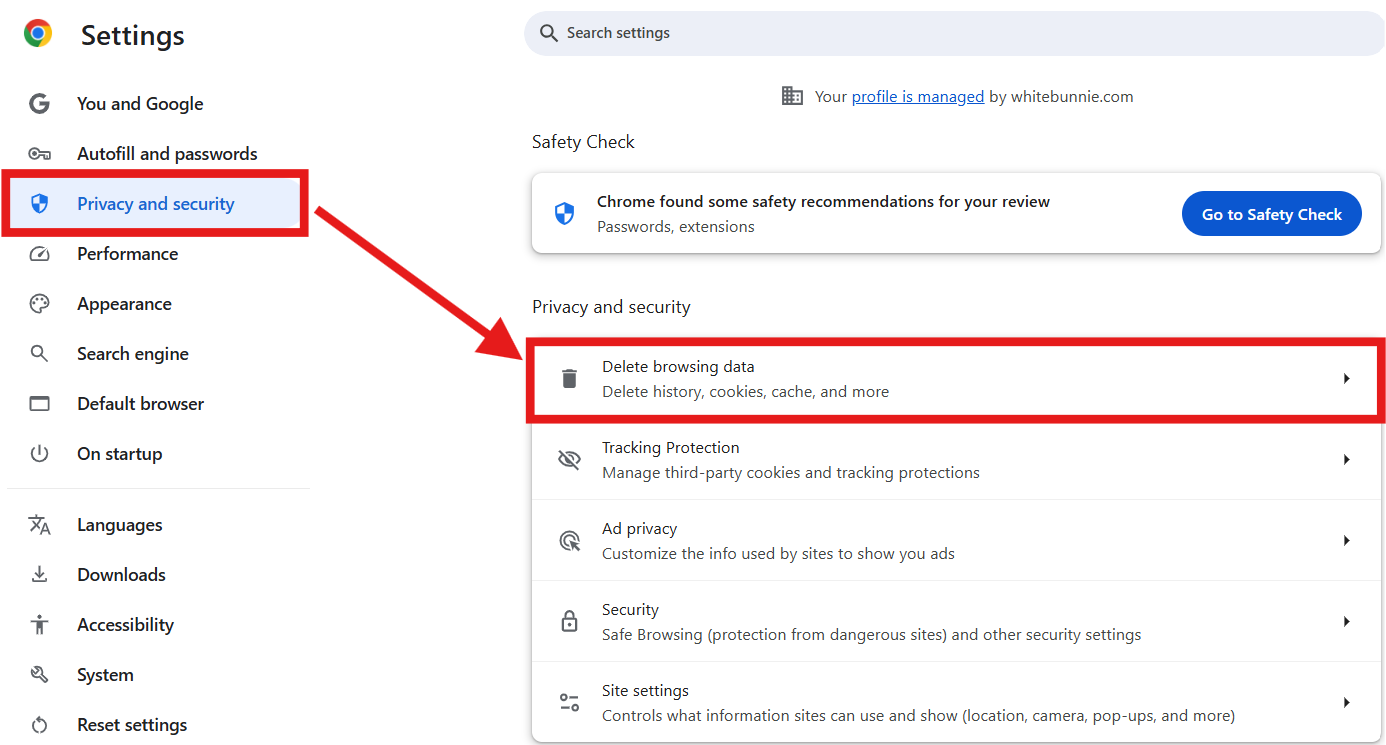
If you’re not seeing the updated results, clear your browser’s cache and cookies.
After saving your settings, perform a search query to verify that the results are now region-specific.
For instance: Search for “restaurants near me” to see local listings from your selected country.
Q1: Will changing my region settings affect my account permanently?
No, you can revert to your original region anytime by following the same steps.
Q2: Does this method work for mobile devices?
Yes, the process is similar on mobile browsers. However, you might need to navigate through additional settings depending on the device.
Changing your location in Google Search settings is a simple yet powerful way to access location-specific search results. Whether for personal use, business, or SEO insights, this feature opens up a world of possibilities. Follow the steps above to customize your search experience today. Partner with an experienced SEO agency offering tailored solutions like local SEO services to boost your online presence.

Saurabh Garg, the visionary Chief Technology Officer at Whitebunnie, is the driving force behind our cutting-edge innovations. With his profound expertise and relentless pursuit of excellence, he propels our company into the future, setting new standards in the digital realm.

Before giving credit to one between AI and traditional SEO one must realize that each has its own scope in […]
Read Post »
SEO is not just a buzzword anymore but more of a tool that helps businesses with visibility. However, on this […]
Read Post »
Keeping your website’s content sharp, current, and effective can feel like a nonstop job. There’s always something new to write, […]
Read Post »
Copyright © 2026 White Bunnie -All Rights Reserved