


How to Assign Roles and Permissions in Meta Business Manager
-
Author
Saurabh Garg -
Publish
August 19, 2025 5:51 am -
Read Time
12 Min
 Lets talk











Fill in the Form below for a no-string attached free technical discussion.
Meta Business Manager (also known as Business Portfolio) is your central hub for managing Facebook and Instagram assets. It replaced the old Facebook Business Manager in 2022. In Meta Business Manager (accessed through Meta Business Suite), you can organize pages, ad accounts, pixels and more – and control who on your team or agency can access each one. This matters because marketing teams often struggle with confusion or bottlenecks: Who can post or run ads? Who can’t see billing info? By carefully assigning roles and permissions, you avoid accidental lockouts or security risks. For businesses just starting out, an Introduction to Meta Business Suite can also be helpful to understand how the platform connects with other Meta tools.
For example, Emma owns a small bakery page and hires a social media freelancer. She can use Meta Business Manager to invite that person with just enough access (say, Editor on the Page) without giving full admin rights.
Assigning the right roles also prevents common headaches. New staff don’t get access to a critical ad account by mistake. Ex-employees lose their permissions promptly. And everyone sees only the tools they need. This guide covers everything step-by-step – from understanding roles to inviting a team member or agency. And if you’re still wondering what is Meta, in simple terms it’s the parent company of Facebook, Instagram, and WhatsApp – and Meta Business tools are designed to streamline managing all these platforms.
Meta has a few tools for businesses, so it helps to understand where Meta Business Manager (Business Portfolio) fits in. Business Manager (Business Portfolio) is the backend hub where you add people and assign permissions across assets. Meta Business Suite is more the front-end: it’s where you create posts, view messages, and check insights across Facebook and Instagram. In practice, you’ll often access Business Manager features through the Business Suite menu.
For example, in Business Suite click Settings → Business Settings to enter Business Manager’s workspace.
In Meta Business Suite you do everyday tasks like posting and messaging. Meta Business Manager (Business Portfolio) is where you assign user roles and manage pages, ad accounts and other assets.
If you’re not sure which tool is better for your needs, exploring Meta Business Manager vs. Meta Business Suite can give you clarity.
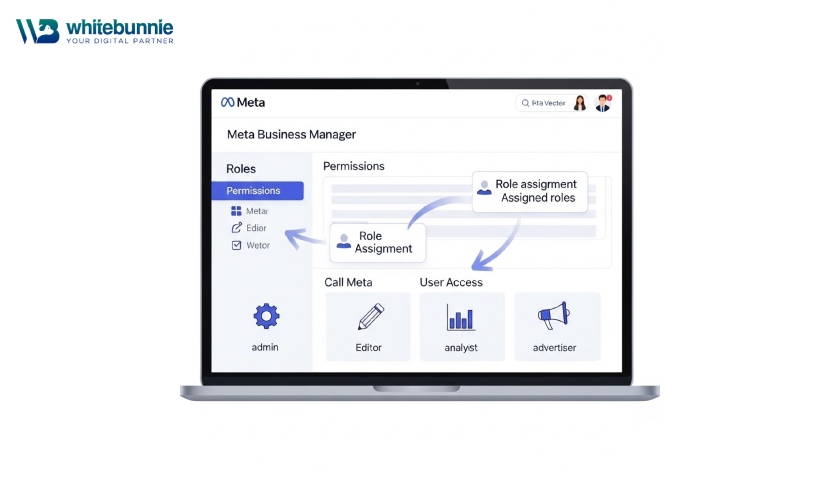
When you open Business Manager/Portfolio, you see all your assets on the left and user access in the center. Even if Meta’s terminology seems to change (for instance, Facebook Business Manager was renamed Business Portfolio, then simplified to Business Manager), the core idea is the same: one dashboard for everything. A Business Account holds all your Pages, ad accounts, Instagram accounts, and team members. By assigning people as either People (employees), Partners (agencies or vendors), or System Users (for apps), you control who can do what.
Many teams run into pain points without a clear roles setup. Here are some common challenges:
Confusion over access – Team members might have too much or too little power. A team member could accidentally change an ad, or be unable to publish a post.
Security risks – Without defined roles, anyone who logs in with a shared account can do anything, and if someone leaves, they keep access.
Audit and compliance headaches – If you need to know who ran which ad or changed a page setting, a muddled permissions system makes it hard.
Onboarding delays – New hires or agencies waste time waiting for invites or logins.
Meta Business Manager solves these by letting you give each person exactly the access they need. For example, you might give a junior marketer Employee access and then grant them Editor-level permissions on one Facebook Page and Advertiser access on the ad account. Meanwhile, your meta ad management agency could be added as a Partner with access to the catalog or business pixel.
The process is more secure and organized. In fact, a recent guide notes that Business Manager “allows you to manage multiple pages and ad accounts, assign roles and permissions, and access detailed analytics” all in one place. In short, it puts you back in control, which saves time and avoids emergencies (like suddenly needing to regain access to a key page).
Before diving into the steps, it helps to know what each role means. Meta Business Manager has two broad categories of users:
People (Employees) – These are your team members or employees. When you add a person, you must choose between Admin or Employee at the business level. Admins have full control (they can add/remove people, change payment methods, etc.), while Employees have limited business control. You then assign each Person access to specific assets (Pages, ad accounts, etc.) with role levels on each.
Partners – These are other business accounts, like an agency’s Business Account. You grant a Partner access by business ID. Partners can have roles just like People, but they remain in their own Business Manager while accessing your assets.
(There are also System Users, but that’s mainly for API integrations and is beyond a beginner’s setup.)
Within each asset (Page, Ad Account, Instagram, etc.), there are asset roles. For example, on a Facebook Page you can give roles like Page Admin, Editor, Moderator, Advertiser, or Analyst. An Admin can do everything on that Page; an Editor can post content; an Advertiser can create ads but not publish posts. Ad Accounts have their own roles (Admin, Advertiser, Analyst).
Putting it simply: First, you invite someone to your Business Manager as a Person or Partner. Then, you give them roles on specific assets. For example, invite Alice as an Employee, then give her Editor rights on the “Acme Corp Page” and Advertiser rights on the “Summer Sale Ad Account.” This two-step approach ensures clarity.
Below is a table summarizing common roles:
| Level | Business Manager Role | What They Can Do (in general) |
|---|---|---|
| Employee (Person) | Business Employee | Limited access. Can work on assigned assets (e.g. post on pages, run ads) but can’t add new people. |
| Employee (Person) | Business Admin | Full access to everything in Business Manager. Can add/remove people, change roles, and manage assets. |
| Partner | Partner Access | An external business. Access depends on permissions given (similar to Employee roles on assets). |
| Page | Page Admin | Manage the page fully, including roles. |
| Page | Editor, Moderator, Advertiser, Analyst | Varying page tasks (post, moderate, run ads, view stats). |
| Ad Account | Ad Admin | Manage campaigns, billing. |
| Ad Account | Advertiser, Analyst | Create/edit ads or just view performance. |
Use this as a quick reference. But don’t memorize – Meta’s interface will guide you through most options. Just remember: admins at the business level mean trust, and asset roles further control the details.
Assigning roles is done in Business Settings. Here’s how to do it:
Log into Business Manager: Go to business.facebook.com. If you’re not already in Business Manager, click your profile menu (top right) and select All tools → Business Settings. If you only see Business Suite, scroll down in the menu and find Business Settings or More Business Tools.
Go to People: In Business Settings, look at the left sidebar under Users and click People. This lists all the individual accounts already invited to your Business Manager.
Add a New Person: Click the + Add button. Enter the email of the person you want to invite (it should match their Facebook login email). Click Next.
Choose Business Role: You’ll see options like Employee access or Admin access. Employees have limited control; Admins can do everything (including adding more people or assets). For most team members, Employee is fine; reserve Admin for trusted owners or senior managers. Select one and click Next.
Assign Assets and Roles: Now you’ll pick exactly which assets (Facebook Pages, Ad Accounts, Instagram accounts, etc.) this person can access, and at what level. Check the boxes for the Pages or Ad Accounts they need. For each asset, choose the role (e.g. Editor, Advertiser) from the dropdown. For example, you might toggle “Full control” on a page (meaning Page Admin) or “Ads posting” on an Ad Account. Take care here: give only what’s needed.
Review and Invite: Once roles are set, click Invite (or Save). Meta will send an email to that person with an invitation link. Tell them to click it and accept.
Meta Business Manager’s Business Settings area lets you see and manage team access. After clicking People and Add, you invite colleagues by email. Then you pick their role (Admin or Employee) and select which Pages or Ad Accounts to share. Finally, Meta sends an invite to the person to accept.
After sending the invite, the new user must accept it (check spam folders!). Once accepted, they appear as active in your People list. You can always click their name in Business Settings > People to adjust their access or remove them later.
If an external agency manages your ads, you add them as a Partner. Many businesses use this approach when hiring a social media marketing agency for campaign strategy and execution.
In Business Settings, under Users, click Partners.
Click + Add and enter the agency’s Business ID (they should provide this).
Grant the Partner access to your assets (similar to above: choose pages, ad accounts, etc., and set roles).
This lets the agency log in to their own Business Manager and work on your accounts, without making them a full Admin on your business.
For completeness: A System User is a way to give API or ad account-level tools access without linking a real person. Most small teams won’t use this. It’s mainly for developers or automated systems. If you don’t know what it is, you can skip it.
Not selecting assets: After clicking “Invite,” double-check that you didn’t forget to toggle any specific Page or Ad Account. Otherwise, the person has business access but can’t actually manage anything.
Giving unnecessary Admin rights: Be cautious making someone a Business Admin, as they can add/remove others and even change billing. Many tasks only need Editor/Advertiser roles.
Using personal Facebook accounts incorrectly: Each user must have a real personal Facebook login to accept the invite. Don’t log in with a fake account. If someone lacks a Facebook account, they need to create one under their own name.
Ignoring partners: For agencies, use the Partners flow instead of sharing your own credentials.
If you run into trouble (say, an invite didn’t send), remember you can always go back to Business Settings > People, click the user, and Resend the invite or change their settings.
Case study: A mid-sized retailer, “Urban Trends”, just hired Jordan as a social media coordinator. They need him to help post on Instagram and manage ads. The owner, Alex, does this:
Alex logs into their Meta Business Manager. Under People, Alex clicks Add, types Jordan’s email, and chooses Employee (no Admin rights).
Next, Alex checks the Instagram account and the Facebook Page “Urban Trends” in the list of assets. For the Page, Alex grants Jordan an Editor role. For the Instagram, gives Full Control on that account. For the Ad Account, toggles Ads Center and Finance Editor (so Jordan can see ad reports but not change billing).
Alex clicks Invite. Jordan gets an email to join the business account. Once he accepts, Jordan logs in and can see the Page and Ad tools he needs. He cannot change the payment method or invite anyone else, because he’s only an Employee and not a Business Admin.
This clear setup meant Jordan was ready to work immediately, and Alex knows exactly what Jordan can do or not do. Later, if Jordan moves teams, Alex can simply remove him from the People list, instantly cutting access. This also demonstrates how to connect Instagram and Facebook business account effectively within Meta’s ecosystem.
Review regularly: Go through Business Settings → People every few months to see if someone’s access should be changed (for example, after someone leaves or changes jobs).
Use two-factor authentication: Meta recommends forcing all admins (and preferably all users) to use 2FA for safety. This setting is in Security Center.
Label your assets: If you have many Pages or Ad Accounts, use clear names so you don’t accidentally share the wrong one.
Train your team: Even with roles set, make sure users know where to go for help. Meta’s Help Center is improving, and many agencies (like White Bunnie) offer guides or support.
Assigning roles correctly from the start pays off later. It avoids scrambling during a crisis (for example, if an employee’s account is hacked, you know what they could access). It also streamlines collaboration: each person logs in to their own Facebook account and sees only what’s needed in Business Manager.
In summary, Meta Business Manager (Business Portfolio) lets you secure and organize your social marketing work by delegating access carefully. Remember:
You access roles via Business Settings in Meta Business Suite.
Add People or Partners, choose Admin or Employee, then assign asset roles.
Use clear naming and periodic reviews to keep everything tidy.
Getting roles right early saves frustration. It ensures your social media and ads run smoothly even as your team grows or changes. If you follow the steps above, you’ll reduce confusion and keep control over your business assets.
For help setting this up or troubleshooting complex cases, experts are available. White Bunnie specializes in Meta Business setups and can guide you through assigning the right roles. Visit White Bunnie for more tips or one-on-one support with your social media business tools.

Saurabh Garg, the visionary Chief Technology Officer at Whitebunnie, is the driving force behind our cutting-edge innovations. With his profound expertise and relentless pursuit of excellence, he propels our company into the future, setting new standards in the digital realm.
Tired of switching between Facebook, Instagram, and Messenger toll manage your business presence? You post on one, answer comments on […]
Read Post »
Running a thriving business on Facebook and Instagram demands more than occasional posts—it requires a well-organized hub that keeps everything […]
Read Post »
The Journey from Facebook to Meta Remember that day in October 2021 when Mark Zuckerberg dropped the bombshell? The blue […]
Read Post »
Copyright © 2026 White Bunnie -All Rights Reserved